
The M button on the DJI Osmo Mobile 6 is one of the main control buttons used for both basic operation and quick mode management. With simple short taps, it allows you to cycle through different gimbal modes, making it easier to adapt the device to different shooting situations without needing to stop and open app settings. This is especially useful when you are filming on the move and want to change the behavior of the gimbal quickly.
In addition to switching modes, the M button also controls the device power. To turn the gimbal on or off, press and hold the button. This long-press function makes powering the Osmo Mobile 6 simple and convenient, while also helping prevent accidental shutdowns during use. Because the same button manages both power and operating modes, it becomes one of the most frequently used controls on the handle.

Another useful shortcut is the standby function. By tapping the M button three times, you can place the gimbal into standby mode. In this state, the motors power off temporarily, which can be helpful when you need to pause shooting, adjust your setup, or save battery without fully shutting the device down. When you are ready to continue, you do not need to go through the full startup process again. Simply tap any button to wake the gimbal and resume operation.
Understanding how to use the M button properly can make the Osmo Mobile 6 much more efficient in real-world shooting. Whether you are switching modes, powering the device on or off, or quickly placing it into standby, this button plays a central role in controlling the gimbal smoothly and effectively.
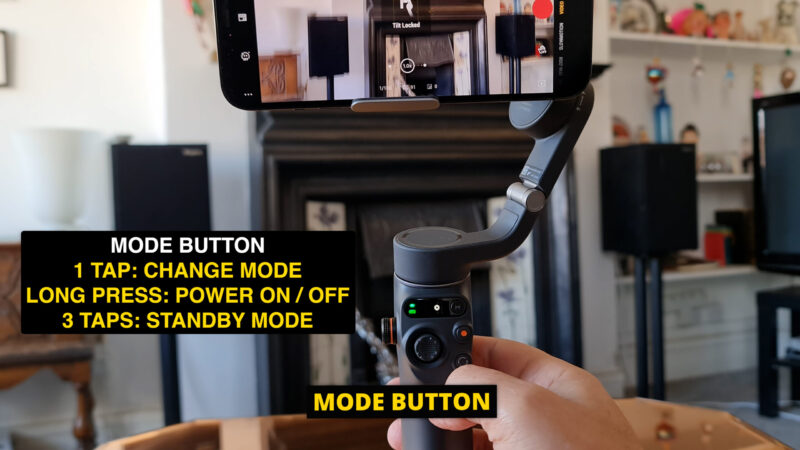
The image above highlights the control area where the M button is located, helping users identify it more easily during setup and operation. Becoming familiar with the placement of this button is important, since it is used regularly while filming and adjusting the gimbal’s behavior.
Switch Button
The button marked with two curved arrows is known as the Switch Button. This control is designed to make camera and orientation changes fast and intuitive, allowing users to adapt their shooting style without interrupting the recording process more than necessary. It is particularly useful for creators who switch between selfie shots, rear-camera footage, vertical content, and standard horizontal video.
A single press of the Switch Button changes between the front and rear camera. This is helpful when moving between self-recording and outward-facing shots, such as when creating vlogs, travel videos, tutorials, or behind-the-scenes footage. Instead of touching the phone screen, you can make the change directly from the gimbal handle, which improves convenience and keeps the shooting process more stable.
Pressing the button twice switches between landscape and portrait orientation. Landscape mode is commonly used for cinematic footage, YouTube videos, and general-purpose filming, while portrait mode is ideal for vertical social media platforms. Users can also manually twist the smartphone by hand to change orientation, but the button provides a faster and more controlled way to do it.
Pressing the Switch Button three times activates a third customizable function. Depending on your settings in the DJI Mimo app, this can either open the quick menu or switch between photo and video modes. Because this action can be configured in the app, users have some flexibility in deciding which function is more useful for their shooting workflow. This makes the Switch Button not just a camera toggle, but also a practical shortcut for faster control.
- Press once to switch between the front and rear camera.
- Press twice to switch between landscape and portrait orientation.
- Press three times to access the quick menu in the app or switch between photo and video, depending on your DJI Mimo settings.
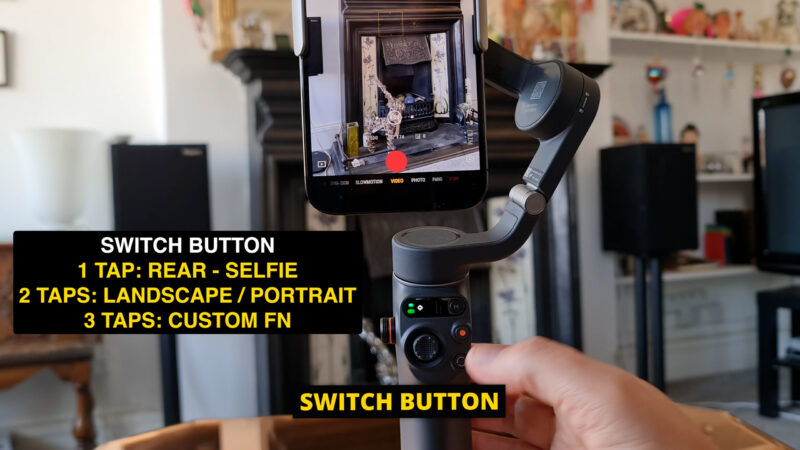
The image above provides another visual reference for the control layout, helping users recognize the Switch Button and understand how it fits into the overall operation of the Osmo Mobile 6. Learning these hardware shortcuts can make shooting smoother and more efficient, especially when filming fast-moving scenes.
Zoom Shot Tip
One of the useful additions on the DJI Osmo Mobile 6 is the side wheel, which can be used for zoom control. This allows you to zoom in more smoothly than you typically could by pinching the phone screen, and because the gimbal stabilizes your hand movement, the result is often steadier and more polished. This can be especially helpful when filming subjects at a distance, adding dramatic emphasis, or creating more dynamic camera movement in your videos.
However, when using zoom, it is important to understand how different phone cameras and apps behave. If you zoom in and notice that the video becomes much more pixelated than expected, the issue may not be caused by the gimbal itself. Instead, it is often related to how third-party apps handle lens switching during recording. Many smartphones have multiple lenses, such as ultrawide, wide, and telephoto, and the native camera app often switches between these lenses more intelligently while recording.
In the DJI Mimo app, lens switching is also possible in many situations, but there can be limitations. For example, when shooting at 4K at 60fps on some phones, such as certain iPhone models, the app may not switch lenses once recording has started. In that case, the app may simply apply digital zoom to the lens you originally selected. Digital zoom enlarges the image without actually changing to a more suitable lens, which can lead to noticeably lower image quality.
This becomes especially important if you start recording with the ultrawide camera. Ultrawide lenses are great for expansive shots, but digitally zooming in from an ultrawide view can result in severe pixelation and reduced detail. On the other hand, if you begin with the main wide camera, zoom results may look better because the base image quality is stronger. In some cases, it may be even better to switch to a telephoto lens before you begin recording if you know you will need a tighter shot.
A practical tip is to think about your framing before pressing record. Choose the most appropriate lens first, then begin shooting, and only use the zoom wheel within a range that preserves acceptable image quality. This will help you avoid disappointing footage and make your zoom shots appear cleaner and more professional.
Focus Wheel
The side wheel on the Osmo Mobile 6 is not limited to zoom. By pressing inward on the wheel, you can switch between zoom control and manual focus control. This dual-purpose design makes the wheel one of the most creative tools on the gimbal, especially for users who want more control over the visual style of their videos.
Inside the DJI Mimo app, you can see a lens icon in the top-right corner labeled with either ZM or MF. These indicators show whether the wheel is currently controlling zoom or manual focus. This visual cue is useful because it confirms the current mode and helps prevent mistakes while filming.
When set to manual focus mode, the wheel allows you to perform smooth focus adjustments while recording. This makes it possible to create focus pulls, where attention shifts from one subject to another in a controlled and visually pleasing way. For example, you might start with the foreground in focus and then slowly shift to a person or object in the background. This technique is commonly used in professional filmmaking to add depth, direct viewer attention, and create a more cinematic look.
A well-executed focus pull can greatly improve the quality and style of your footage. Because the wheel allows gradual adjustment, it is much easier to create this effect smoothly than by tapping on the phone screen. For users interested in making their smartphone videos look more advanced and cinematic, learning to use the focus wheel effectively is a valuable skill.
Overall, the combination of the M button, Switch Button, zoom control, and focus wheel makes the DJI Osmo Mobile 6 a versatile tool for mobile creators. These controls are designed to reduce reliance on touchscreen input, improve shooting precision, and help users achieve more professional-looking results directly from the gimbal handle.
https://momofilmfest.com